04 · Configuration Profiles
What I Learnt
1. What is a configuration profile?
A configuration profile is a policy pushed from Intune that actively enforces settings on a managed device. Where a compliance policy detects whether a device meets a standard, a configuration profile enforces it.
This distinction matters in practice. During this lab, the compliance policy flagged password complexity as non-compliant but could not fix it on its own — the device kept failing the check regardless of what password was set. Once a configuration profile was created pushing the password settings to the device, the compliance check passed automatically. The two work together:
Configuration profile → enforces the setting on the device
Compliance policy     → detects whether the setting is in place
Configuration profiles are created in Devices → Configuration and can be built using the Settings catalog (UI-driven, recommended) or Templates (older method, still needed for some CSPs).
Gotcha — Settings catalog vs OMA-URI: Some settings are unreliable through the Settings catalog and need to be configured via a custom OMA-URI template instead. The Desktop Image URL (wallpaper) is a known example — the Settings catalog version returns error -2016281112 on Entra joined Windows 11 Pro devices. Use Templates → Custom and target the CSP directly via OMA-URI in these cases.
Gotcha — Intune Management Extension (IME): Some profile types require the Intune Management Extension to be installed on the device. IME handles Win32 app deployment and PowerShell scripts. If IME is not installed, those features will not work even if the device is enrolled and compliant. IME is installed automatically but can sometimes fail to deploy on first enrolment.
2. Profiles configured in this lab
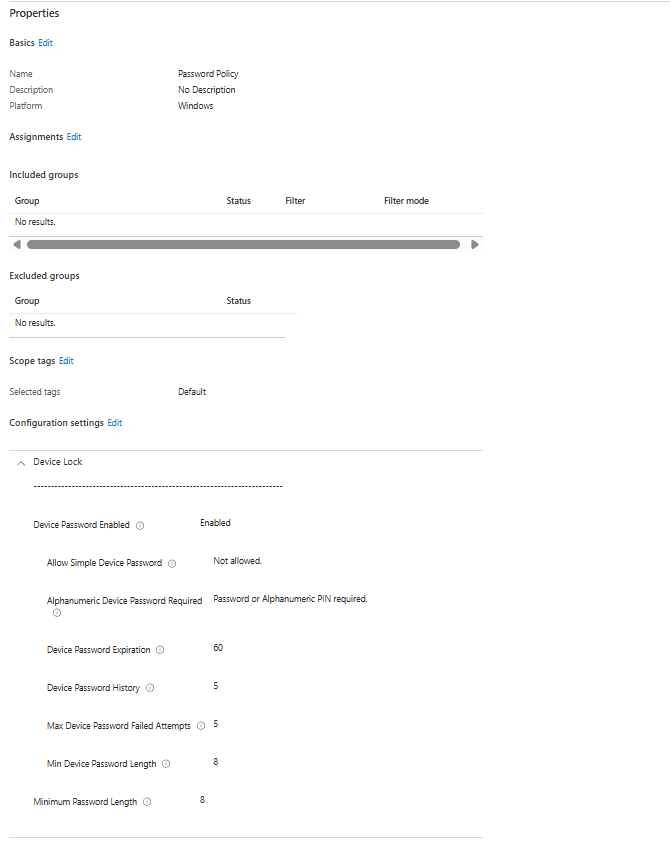
Password Policy
A Device Lock configuration profile was created to enforce password requirements on managed devices. This was necessary because the compliance policy could detect password non-compliance but could not enforce the settings without a corresponding configuration profile pushing them to the device.
Profile type: Settings catalog — Device Lock
| Setting | Value | Why |
|---|---|---|
| Device Password Enabled | Enabled | Activates the password requirement on the device |
| Allow Simple Device Password | Not allowed | Blocks easily guessable passwords |
| Alphanumeric Device Password Required | Password or Alphanumeric PIN required | Requires a mix of letters and numbers |
| Min Device Password Length | 8 | Minimum 8 character password |
| Device Password Expiration | 60 days | Forces password rotation every 60 days |
| Device Password History | 5 | Prevents reuse of the last 5 passwords |
| Max Device Password Failed Attempts | 5 | Locks the device after 5 failed attempts |
Note: Min Device Password Complex Characters was deliberately left out. Including it enforces a special character requirement on top of the alphanumeric requirement, which caused compliance failures even when the password met all other criteria.
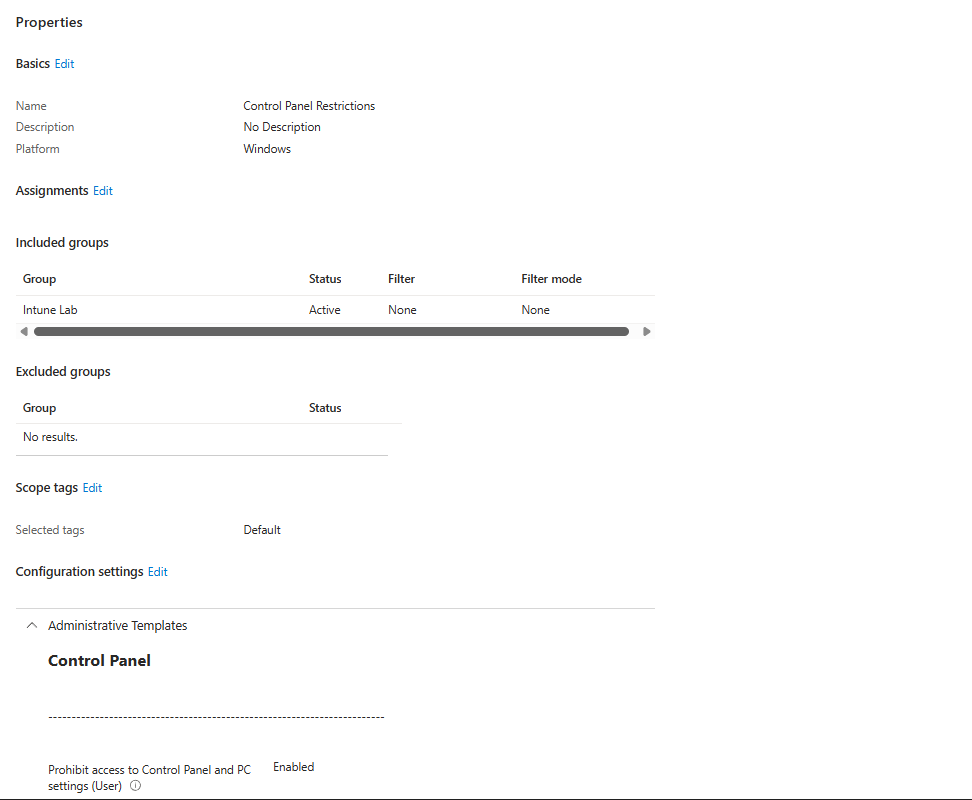
Control Panel Restriction
A profile was created to block user access to the Windows Control Panel and PC Settings. This simulates a common enterprise hardening policy that prevents end users from changing system settings.
Profile type: Settings catalog — Administrative Templates\Control Panel
| Setting | Value | Why |
|---|---|---|
| Prohibit access to Control Panel and PC settings (User) | Enabled | Blocks access to Control Panel and the Settings app for standard users |
When applied, attempting to open Control Panel displays: "This operation has been cancelled due to restrictions in effect on this computer."
Creating a Configuration Profile
Step 1 — Create the profile
- intune.microsoft.com → Devices → Configuration → Create → New policy
- Platform: Windows 10 and later
- Profile type: Settings catalog → Create
- Give the profile a name and click Next
Step 2 — Add settings
- Click Add settings to open the Settings picker
- Search for the setting category or setting name
- Tick the settings you want to configure — they will appear in the profile
- Close the Settings picker and configure each setting's value
Step 3 — Assignments
- Skip Scope tags
- On the Assignments page click Add groups → select Intune Lab Devices → Select
- Click Next → Review + create → Create
Gotcha — Always verify assignments saved: After creating a profile, go back to it and check Properties → Assignments confirms the group is listed. Assignments sometimes fail to save silently, which results in all zeros on the check-in status page and the profile never applying.
Step 4 — Verify the profile applied
Force a sync on the device: Settings → Accounts → Access work or school → click the work account → Info → Sync
Then in Intune → Devices → Configuration → click the profile → Device and user check-in status — the device should appear with a status of Succeeded.
Verification Checklist
- [ ] Password policy profile created and assigned to Intune Lab Devices
- [ ] Control Panel restriction profile created and assigned to Intune Lab Devices
- [ ] Both profiles show Succeeded in device check-in status
- [ ] Laptop shows as Compliant after password profile applied
- [ ] Control Panel blocked on the laptop — restriction message confirmed
Useful Links
| Resource | URL |
|---|---|
| Intune Admin Centre | intune.microsoft.com |
| Settings catalog documentation | learn.microsoft.com/en-us/mem/intune/configuration/settings-catalog |
Screenshots
Previous: 03 · Compliance Policies · Next: 05 · App Deployment