03 · Compliance Policies
What I Learnt
1. What is a compliance policy?
A compliance policy is a set of rules defined in Intune that a device must meet to be considered healthy. If a device breaks any rule it is marked as Non-compliant in the Intune dashboard.
On its own, a non-compliant status is just a flag. The real enforcement comes when compliance policies are paired with Conditional Access (covered in section 06), which can block a non-compliant device from accessing Microsoft 365 services like email and Teams entirely.
Compliance policies are evaluated when a device checks in with Intune. The default check-in interval is every 8 hours, but a manual sync can be triggered at any time from the device.
2. What are groups and when do you set them up?
In Intune, policies are not applied directly to individual devices or users — they are assigned to groups. A group is a collection of users or devices that a policy targets.
Groups are created and managed in Entra ID (not Intune), and there are two types:
| Type | How members are added | Use case |
|---|---|---|
| Assigned | Manually, one by one | Small labs, specific test groups |
| Dynamic | Automatically based on rules (e.g. all devices running Windows 11) | Enterprise environments — requires Entra P1 |
Since Entra P1 is not included in the free trial, this lab uses Assigned groups. Groups should be created before building policies, as the assignment step at the end of policy creation requires them to exist.
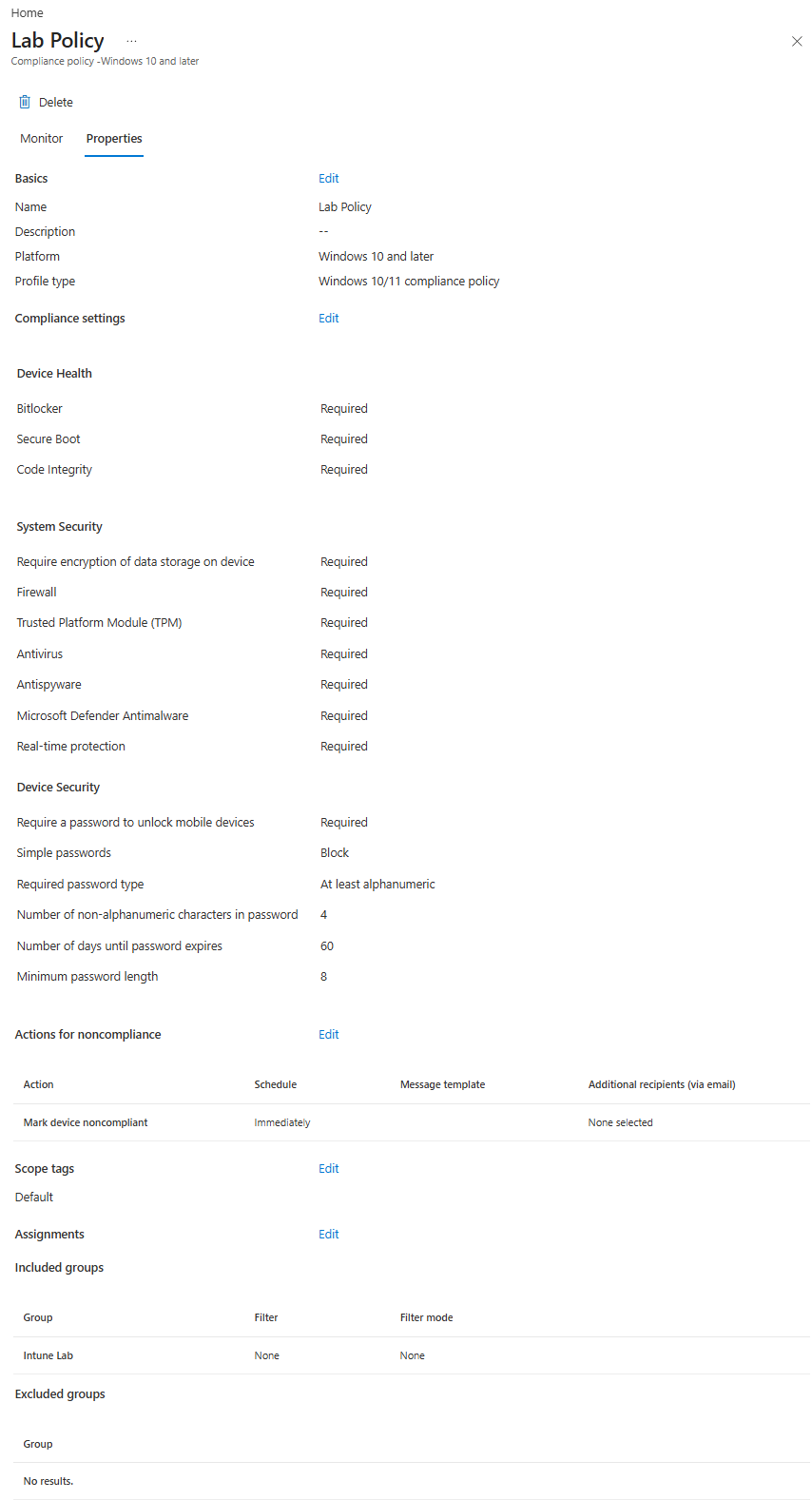
For this lab, a single security group called Intune Lab Devices was created in Entra ID containing client01 and client02, and all policies are assigned to this group.
3. Compliance settings explained
Device Health
Settings that verify the integrity of the device at a hardware and firmware level.
| Setting | Value | Why |
|---|---|---|
| BitLocker | Require | Ensures the device's storage is encrypted. Without BitLocker, data on the drive is readable by anyone with physical access. |
| Code Integrity | Require | Verifies that drivers and system files have not been tampered with. |
Gotcha — VMs and Secure Boot: Secure Boot is not enabled by default on VirtualBox VMs. If applied to a VM, the device will show as non-compliant for Secure Boot even if Windows is running fine. Either enable Secure Boot on the VM before enrolment via
VBoxManage modifyvm "VM-NAME" --secure-boot on, or remove Secure Boot from the compliance policy if you are only testing with VMs.
System Security — Password
Password requirements enforced on the device login screen.
| Setting | Value | Why |
|---|---|---|
| Require password | Require | Ensures the device cannot be accessed without authentication. |
| Simple passwords | Block | Prevents easily guessable passwords like 1234 or aaaa. |
| Password type | Alphanumeric | Requires a mix of letters and numbers, increasing password strength. |
| Minimum length | 8 characters | Baseline password length requirement. |
| Password expiration | 60 days | Forces regular password rotation. |
| Previous passwords | 5 | Prevents users from immediately reusing old passwords. |
System Security — Encryption
| Setting | Value | Why |
|---|---|---|
| Encryption of data storage | Require | Redundant with the BitLocker setting above but covers data encryption at the OS level as a separate check. |
System Security — Device Security
| Setting | Value | Why |
|---|---|---|
| Firewall | Require | Ensures the Windows Firewall is active and blocking unauthorised inbound connections. |
| TPM | Require | Trusted Platform Module — a hardware security chip required for BitLocker and Secure Boot. Ensures the device meets minimum hardware security standards. |
| Antivirus | Require | Confirms a registered antivirus solution is active on the device. |
| Antispyware | Require | Confirms a registered antispyware solution is active. |
System Security — Defender
| Setting | Value | Why |
|---|---|---|
| Microsoft Defender Antimalware | Require | Ensures Windows Defender is running and has not been disabled. |
| Real-time protection | Require | Ensures Defender is actively scanning files and processes, not just running passively. |
Defender for Endpoint was left as Not configured — this requires a separate Microsoft Defender for Endpoint licence which is not included in the free Intune trial.
4. Actions for noncompliance
When a device is marked non-compliant, Intune can trigger one or more actions. The default action is to mark the device non-compliant immediately.
Additional actions that can be configured include:
| Action | What it does |
|---|---|
| Send email to end user | Notifies the user that their device is non-compliant |
| Retire the noncompliant device | Removes the device from Intune management after X days |
| Push notification | Sends a push notification to the Company Portal app |
For this lab the default action (mark non-compliant immediately) was kept. In a production environment a grace period of a few days is common to avoid disrupting users over minor issues like a pending Windows update.
Creating a Compliance Policy
Step 1 — Create a group in Entra ID
Compliance policies are assigned to groups. Create the group before building the policy.
- entra.microsoft.com → Groups → All groups → New group
- Set the following:
| Setting | Value |
|---|---|
| Group type | Security |
| Group name | Intune Lab Devices |
| Membership type | Assigned |
- Under Members, add client01 and client02
- Click Create
Step 2 — Create the compliance policy
- intune.microsoft.com → Devices → Compliance → Create policy
- Platform: Windows 10 and later → Create
- Give the policy a name (e.g.
Windows - Baseline Compliance) and an optional description - Click Next
Step 3 — Configure compliance settings
Apply the settings from the tables above across the following categories:
- Device Health — BitLocker, Secure Boot, Code Integrity all set to Require
- System Security — Password, Encryption, Device Security, and Defender settings as above
Click Next.
Step 4 — Actions for noncompliance
Leave the default action: Mark device noncompliant → Immediately
Click Next.
Step 5 — Assignments
- Click Add groups → select Intune Lab Devices → Select
- Click Next → Create
Testing — Simulating a Non-compliant Device
To see what a non-compliant device looks like in the Intune dashboard, the firewall was disabled on WIN-VM-02:
- On WIN-VM-02, open Windows Security → Firewall & network protection
- Click into Domain network, Private network, and Public network and turn the firewall Off on each
- Force a sync: Settings → Accounts → Access work or school → click the work account → Info → Sync
- In Intune → Devices → All devices — WIN-VM-02 will change to Non-compliant within a few minutes
To restore compliance, re-enable the firewall on WIN-VM-02 and sync again.
Verification Checklist
- [ ] Security group created in Entra ID containing client01 and client02
- [ ] Compliance policy created and assigned to Intune Lab Devices group
- [ ] All enrolled devices show as Compliant in Intune
- [ ] WIN-VM-02 successfully simulated as Non-compliant
Useful Links
| Resource | URL |
|---|---|
| Intune Admin Centre | intune.microsoft.com |
| Entra Admin Centre | entra.microsoft.com |
Screenshots


Previous: 02 · Device Enrolment · Next: 04 · Configuration Profiles